Connect Booking.com to Travel404
Link Booking.com through Channex so rates, availability and restrictions push out automatically and every booking lands on your calendar within seconds.
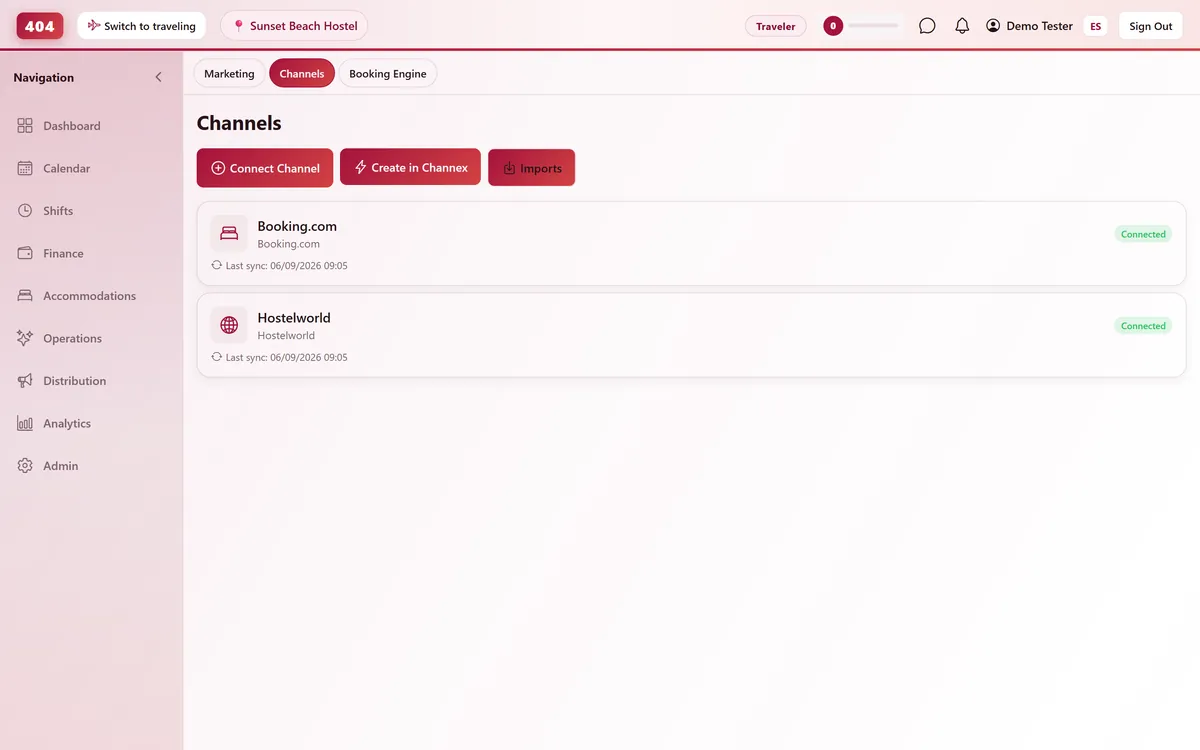
Booking.com connects to Travel404 through Channex, our channel manager. Once it is live, Travel404 pushes your rates, availability and restrictions to Booking.com every time they change, and new Booking.com reservations arrive on your calendar automatically — no refreshing, no manual entry.
Before you start
- Admin access to your Booking.com Extranet, with two-factor authentication enabled (Booking.com requires it to reach Connectivity settings)
- A paid plan — the Channels screen stays locked for the whole free trial, so connect once you are live
- A Channex connection already active in Travel404 — Property → Channels → Create in Channex, a one-time step per account
- Your rooms and rate plans already built in Travel404, since you will map each one to Booking.com
Steps
In the Booking.com Extranet
Find your Property ID
It shows at the top of the Extranet, next to your property name. Booking.com also calls this the Hotel ID — you will need it in Travel404.
Request the connection to Channex
Go to Account → Connectivity Provider, click Search, and type "Channex" in full — a partial search will not find it. Select Channex.io and click Next.
Accept the XML Service Agreement
Tick the agreement checkbox and click "Yes, I accept." Your property goes into a waiting state until Channex approves the request — usually within the same business day.
In Travel404
Open Property → Channels
Confirm your Channex channel shows status Connected. If this is your first OTA, create it first with "Create in Channex."
Click "Manage OTAs"
On the Channex channel card, click "Manage OTAs (Booking.com / Airbnb / Hostelworld)." This opens Channex's setup screen inside Travel404 — you never need a separate Channex login.
Create the Booking.com channel
Click Create, choose Booking.com, and paste the Property ID from the Extranet into the Hotel ID field. Click Test Connection and confirm it succeeds.
Map every room and rate plan
Match each Booking.com room type and rate plan on the left to the matching Travel404 accommodation on the right. Leave nothing unmapped — an unmapped rate plan causes sync errors later.
Save, then Activate
Press Save, then open the Actions menu and choose Activate. This starts the live push of rates, availability and restrictions.
Back in the Booking.com Extranet
Approve our email sender
Go to Property → Messaging preferences → Security settings → Your email addresses, add [email protected], then click "Apply to all properties." Skip this and Booking.com silently drops guest confirmation and pre-arrival emails.
How to tell it worked
Open the Channex channel card in Travel404 and click Pull Reservations to confirm the connection is live, or just wait — a real Booking.com reservation appears under Imports within about 5 minutes of being made.
If something looks wrong
Guests say they never received a booking confirmation email
You skipped the approved-sender step. Add [email protected] in Property → Messaging preferences → Security settings → Your email addresses and apply it to all properties — Booking.com drops mail from unlisted senders without telling you.
Test Connection fails or says the property was not found
Either the Property ID was mistyped, or Channex has not yet approved the connection request you sent from Connectivity Provider — check its status there before retrying.
A room or rate plan will not show up to map
Click Fetch Listings on the channel detail screen in Travel404 to refresh what Channex sees from Booking.com, then try mapping again.
Rates on Booking.com do not match what I set in Travel404
Booking.com's own "derived rates" rules can automatically override a rate you push. Check Rates & Availability in the Extranet for a derived-pricing rule fighting the price Travel404 is sending.
Common questions
How long does Booking.com take to approve the connection?
Usually the same business day. New or unverified Booking.com accounts can take longer.
Do I still edit rates or availability directly in the Extranet?
No. Once the channel is activated, Travel404 pushes rates, availability and restrictions to Booking.com on every change — anything you edit manually in the Extranet gets overwritten on the next push.
What happens to bookings I already had before connecting?
Enter them in Travel404 before you activate the channel. Booking.com only sees availability as it stands from the moment the connection goes live, so unentered bookings show as open rooms and risk a double booking.
How fast do new Booking.com reservations reach my calendar?
Within seconds — delivery is webhook-based. A background sync every 5 minutes double-checks for anything a webhook might have missed.
See it running in your hostel
Set up in 30 minutes. No credit card required.