Add the Travel404 booking widget to Squarespace
Add a live booking search bar to Squarespace with a Code Block. Requires the Core plan or higher — Personal and Basic plans block JavaScript.
Squarespace's Code Block accepts raw HTML, CSS and JavaScript, dropped inline wherever you place it on a page. The one thing to know up front: on the Personal or Basic plan, Squarespace strips <script> tags out of Code Blocks, so the widget won't run — you need Core (formerly called Business) or a higher plan.
Before you start
- A Squarespace site on the Core plan or higher (Personal/Basic strip <script> tags).
- Your property set up in Travel404 with a slug (Property → Booking Engine shows it).
Steps
In Travel404
Copy the widget embed code
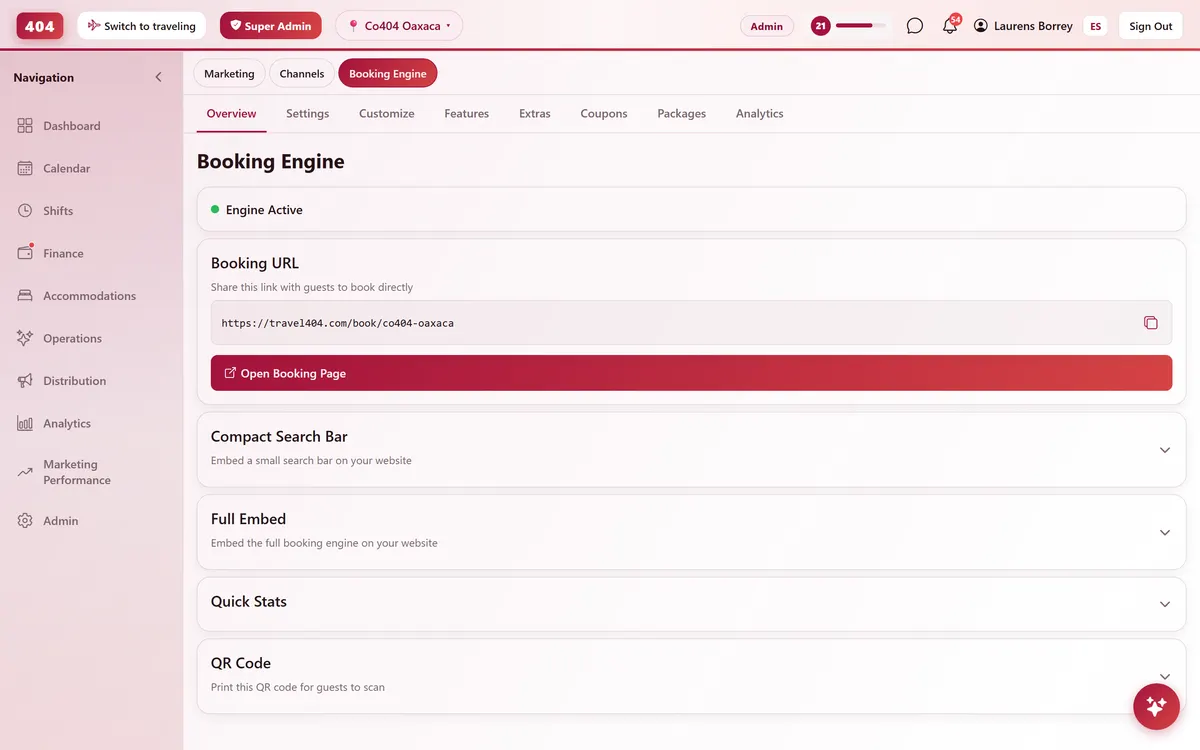
In the Travel404 app, go to Property → Booking Engine and open Compact Search Bar Widget. Under Embed Code, tap the copy icon. The code is two lines — a <div> and a <script> tag — and your property's slug is already filled in, so you won't need to edit anything before pasting it.
In Squarespace
Open the page for editing
Go to Pages, open the page, and hover over the spot where you want the widget until a + appears.
Add a Code Block
Click the +, then choose Code from the block list (it's under the "More" section, alongside Embed and Markdown).
Paste the snippet
Paste the two lines from Travel404 into the Code Block's editor pane. Confirm the format toggle is set to HTML, not Markdown.
Apply and save
Click Apply, then save and exit the page editor.
View the live page
Open the published page (not the editor preview) to confirm the search bar loads.
The snippet to paste
<div data-t404-property="your-property-slug" data-t404-mode="widget"></div>
<script async src="https://travel404.com/embed.js"></script>
How to tell it worked
Open the live page in a private/incognito window — not a tab you had open before pasting the code, which may show a cached version — and confirm the search bar loads with your property, the date pickers open, and Search takes the guest to a booking page. If nothing shows, re-check the steps above before assuming it's broken.
If something looks wrong
The Code Block editor silently drops the <script> tag
You're on the Basic plan (formerly called Personal) — those plans allow HTML/CSS in Code Blocks but strip JavaScript. There's no supported workaround; upgrade to Core or higher (community workarounds using Markdown blocks in the footer are unsupported and can break without notice).
The widget shows a scrollbar or looks cut off
Code Blocks are inline, so this is unusual on Squarespace — check for custom CSS targeting .sqs-block-code with a fixed height or overflow:hidden.
It shows in the editor but disappears on the live site
Make sure you clicked Apply inside the block and then saved the page — navigating away from an open Code Block without applying reverts it.
It doesn't show on mobile
Open the block's settings and check it isn't set to hide on mobile — Squarespace lets you toggle visibility per device.
Common questions
Which Squarespace plan do I need?
Core or higher (called Business on older plan names). Personal and Basic strip the <script> tag the widget needs.
Where exactly is the Code block?
Click the + to insert a block, then look in the "More" section — Code sits next to Embed and Markdown, not in the main block list.
Can I put the widget on more than one page?
Yes. Paste the same snippet anywhere it makes sense — homepage, a dedicated "Book now" page, even your footer. embed.js supports any number of copies on the same page or across the site.
See it running in your hostel
Set up in 30 minutes. No credit card required.