Add the Travel404 booking widget to WordPress
Add a live booking search bar to any WordPress page with the built-in Custom HTML block — no plugin required, five minutes start to finish.
WordPress's block editor (Gutenberg) has a Custom HTML block built in, so pasting Travel404's embed code doesn't need a plugin. This works the same whether you're on WordPress.org (self-hosted) or WordPress.com on a Business plan or higher, which is the tier that allows custom HTML.
Before you start
- Your property set up in Travel404 with a slug (Property → Booking Engine shows it).
- Editor or Administrator access to the WordPress page you want to add it to — Contributors can't publish changes.
Steps
In Travel404
Copy the widget embed code
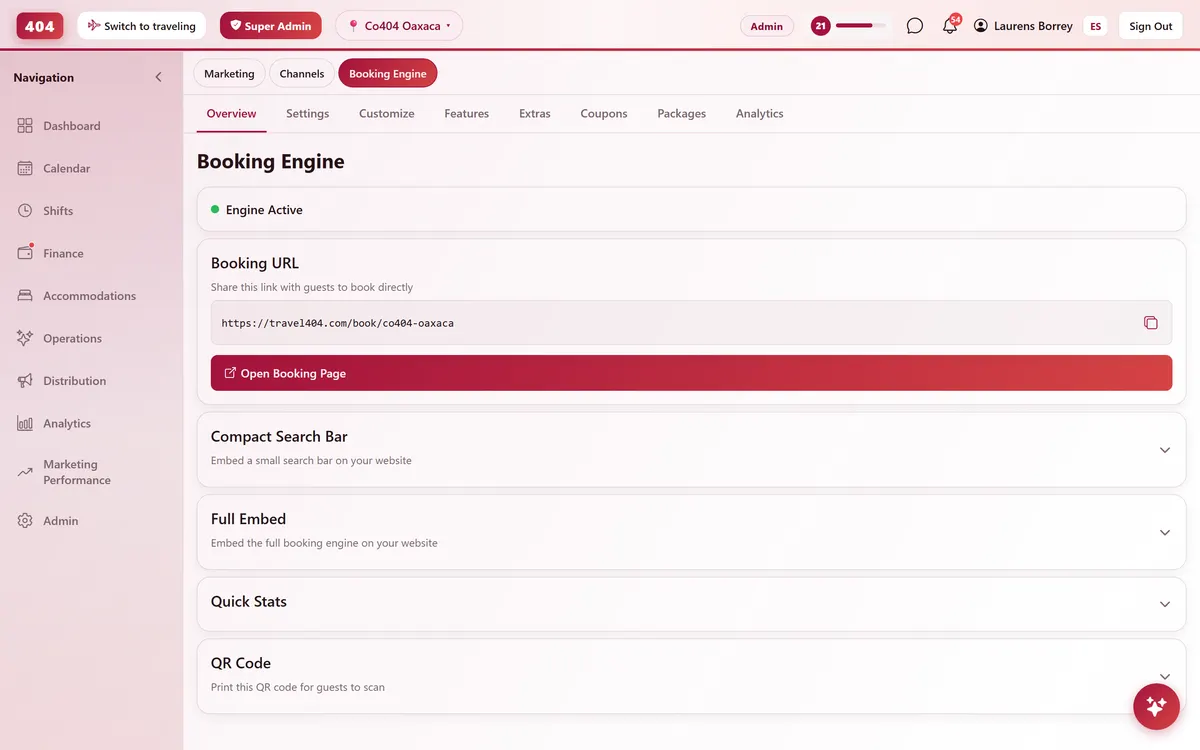
In the Travel404 app, go to Property → Booking Engine and open Compact Search Bar Widget. Under Embed Code, tap the copy icon. The code is two lines — a <div> and a <script> tag — and your property's slug is already filled in, so you won't need to edit anything before pasting it.
In WordPress
Open the page in the block editor
Go to Pages (or Posts) → find the page → Edit. This opens the Gutenberg block editor.
Add a Custom HTML block
Click the + (Block Inserter) in the top-left corner, type "Custom HTML" into the search box, and click it to add the block where your cursor is.
Paste the snippet
Click inside the block and paste the two lines you copied from Travel404. Don't retype it — copy-paste avoids stray characters.
Preview before publishing
Click Preview (top right) and open the page in a new tab. Confirm the search bar renders.
Publish or Update
Click Publish (new page) or Update (existing page) to make it live.
The snippet to paste
<div data-t404-property="your-property-slug" data-t404-mode="widget"></div>
<script async src="https://travel404.com/embed.js"></script>
How to tell it worked
Open the live page in a private/incognito window — not a tab you had open before pasting the code, which may show a cached version — and confirm the search bar loads with your property, the date pickers open, and Search takes the guest to a booking page. If nothing shows, re-check the steps above before assuming it's broken.
If something looks wrong
The widget shows a scrollbar or looks cut off
Custom HTML blocks render inline in the page, so this is almost always the theme, not Travel404 — check whether the theme or a page builder wraps that section in a container with a fixed height or overflow:hidden.
Nothing shows at all
Most often a caching plugin (WP Rocket, W3 Total Cache, LiteSpeed Cache) is serving a version of the page from before you added the block — purge the page cache. If that doesn't fix it, a security plugin (Wordfence, Sucuri) may be stripping <script> tags from post content on save; check its firewall log or hardening settings.
The search bar shows but Search does nothing
Double-check the property slug in the code matches the slug shown in Travel404 → Property → Booking Engine, and that the property is published and has room types set up.
The widget shows in English but my guests are Spanish speakers
Add data-t404-lang="es" to the <div> (e.g. <div data-t404-property="your-property-slug" data-t404-mode="widget" data-t404-lang="es">). That attribute only applies to mode="book"; the widget snippet above always shows English.
Common questions
Do I need a plugin or app to do this?
No. The whole thing is a two-line snippet — a <div> and a <script> tag. You don't install anything from a plugin marketplace.
Does this work with page builders like Elementor or Divi?
Yes — use their equivalent element (Elementor's "HTML" widget, Divi's "Code" module) and paste the exact same snippet into it instead of the Gutenberg Custom HTML block.
Can I put the widget on more than one page?
Yes. Paste the same snippet anywhere it makes sense — homepage, a dedicated "Book now" page, even your footer. embed.js supports any number of copies on the same page or across the site.
See it running in your hostel
Set up in 30 minutes. No credit card required.