Add the Travel404 booking widget to Webflow
Drop the booking search bar into Webflow with the Embed element. Needs a paid Site plan or Workspace plan — the free Starter tier blocks it on publish.
Webflow's Embed element (sometimes called Code Embed) lets you drop raw HTML into the Designer canvas like any other element. It works in the Designer on any plan, but publishing a page that uses it needs either a paid Site plan or a paid Workspace plan — Webflow blocks Code Embed from going live on the free Starter tier.
Before you start
- A Webflow site on a paid Site plan (or a paid Workspace) — free Starter sites can't publish Code Embed.
- Your property set up in Travel404 with a slug (Property → Booking Engine shows it).
Steps
In Travel404
Copy the widget embed code
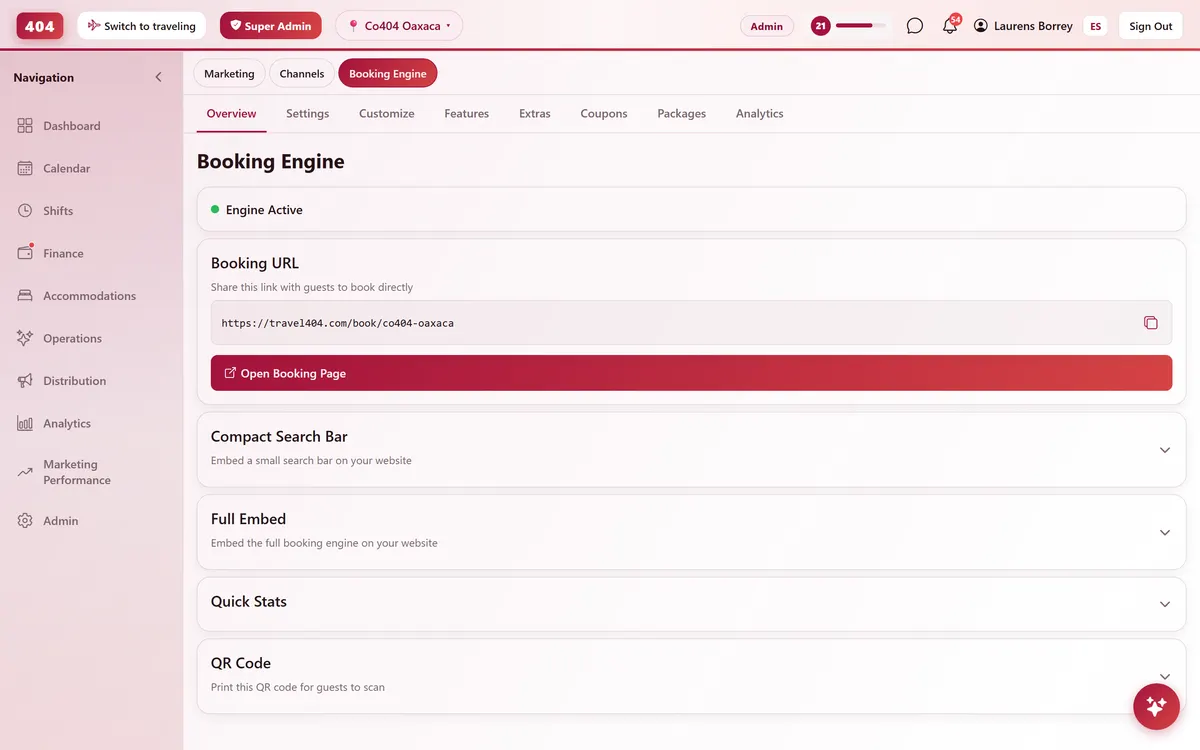
In the Travel404 app, go to Property → Booking Engine and open Compact Search Bar Widget. Under Embed Code, tap the copy icon. The code is two lines — a <div> and a <script> tag — and your property's slug is already filled in, so you won't need to edit anything before pasting it.
In Webflow
Open the page in the Designer
From your Webflow dashboard, open the site, then the page you want.
Add an Embed element
Open the Add panel (+), search "Embed" and drag it onto the page where you want the widget.
Paste the code
Double-click the Embed element (or click the pencil icon) to open its code editor, paste the two lines from Travel404, and click Save.
Set the sizing
In the Style panel, set the element's width to 100% and its height to Auto if available — Webflow embeds otherwise default to a small fixed box.
Publish the site
Click Publish (top right). The Designer's own preview doesn't always run embedded scripts — always check the published URL.
The snippet to paste
<div data-t404-property="your-property-slug" data-t404-mode="widget"></div>
<script async src="https://travel404.com/embed.js"></script>
How to tell it worked
Open the live page in a private/incognito window — not a tab you had open before pasting the code, which may show a cached version — and confirm the search bar loads with your property, the date pickers open, and Search takes the guest to a booking page. If nothing shows, re-check the steps above before assuming it's broken.
If something looks wrong
The widget doesn't appear even after publishing
Check Site Settings → Plan (or your Workspace plan). Code Embed elements are blocked from publishing on the free Starter tier — you need a paid Site plan or Workspace plan.
I can't find "Embed" in the Add panel
Type "embed" into the Add panel's search box — it's grouped under Components/Advanced, not the basic elements at the top.
The widget shows a scrollbar or the calendar gets clipped
The Embed element's height defaulted to a small fixed size. Open the Style panel and set height to Auto, or a generous fixed value (600px), so the calendar has room to open.
The widget shows in English but my guests are Spanish speakers
Add data-t404-lang="es" to the <div> (e.g. <div data-t404-property="your-property-slug" data-t404-mode="widget" data-t404-lang="es">). That attribute only applies to mode="book"; the widget snippet above always shows English.
Common questions
Which Webflow plan do I need?
A paid Site plan or a paid Workspace plan. Code Embed elements exist on free sites in the Designer, but Webflow won't publish them on the free Starter tier.
Can I add this to a CMS Collection page?
Yes — drop the Embed inside a Collection template if you want it on every property page automatically, or use a fixed slug if one page maps to one property.
Can I put the widget on more than one page?
Yes. Paste the same snippet anywhere it makes sense — homepage, a dedicated "Book now" page, even your footer. embed.js supports any number of copies on the same page or across the site.
See it running in your hostel
Set up in 30 minutes. No credit card required.