Add the Travel404 booking widget to Weebly
Add a live booking search bar to Weebly with the Embed Code element. Note Square is winding Weebly down in 67 countries on 27 September 2026 — check yours before you build on it.
Weebly's Embed Code element (found under the Basic section of the element panel) is built for exactly this — dropping raw HTML, CSS or JavaScript into a page. It's a standard element on every Weebly plan, so there's no upgrade to worry about.
Before you start
- Before anything else: Square announced on 20 June 2026 that Weebly closes in 67 countries, with affected sites going offline on 27 September 2026 and accounts deleted on 26 December 2026. If your country is on that list, put the widget on the site you are moving to instead — the steps below work the same on Square Online.
- Your property set up in Travel404 with a slug (Property → Booking Engine shows it).
- Edit access to the site in the Weebly editor.
Steps
In Travel404
Copy the widget embed code
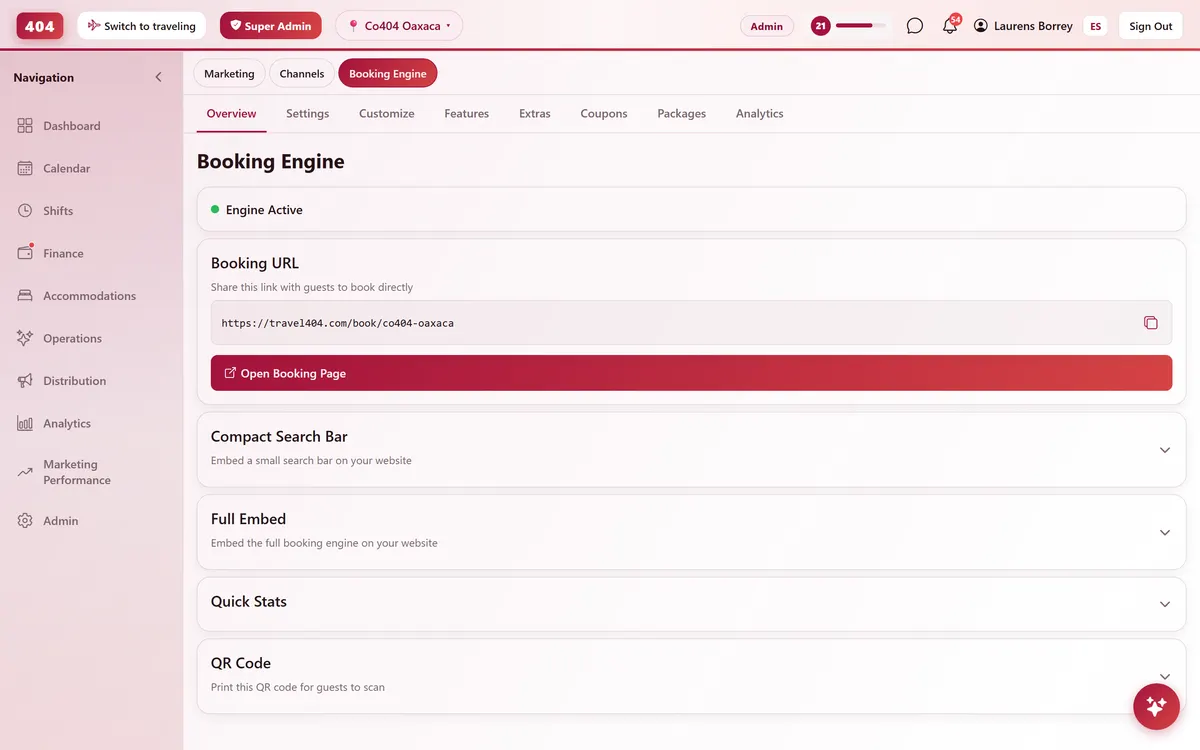
In the Travel404 app, go to Property → Booking Engine and open Compact Search Bar Widget. Under Embed Code, tap the copy icon. The code is two lines — a <div> and a <script> tag — and your property's slug is already filled in, so you won't need to edit anything before pasting it.
In Weebly
Open the page in the Weebly editor
From your Weebly dashboard, click Edit Site, then go to the page you want.
Drag in the Embed Code element
In the left Build panel, find Embed Code under Basic (or search "embed"), and drag it onto the page.
Open the code editor
Click inside the element and choose Edit Custom HTML (the exact label varies slightly by Weebly version — look for a code icon).
Paste the snippet
Paste the two lines from Travel404, then click outside the element to save.
Publish the site
Click Publish (top right). Weebly's editor doesn't run the script live — you'll see a blank box until you publish and check the real site.
The snippet to paste
<div data-t404-property="your-property-slug" data-t404-mode="widget"></div>
<script async src="https://travel404.com/embed.js"></script>
How to tell it worked
Open the live page in a private/incognito window — not a tab you had open before pasting the code, which may show a cached version — and confirm the search bar loads with your property, the date pickers open, and Search takes the guest to a booking page. If nothing shows, re-check the steps above before assuming it's broken.
If something looks wrong
It shows a blank box in the editor
That's expected — Weebly's editor doesn't execute embedded scripts in the edit view. Publish the site and check the live page instead.
The widget shows a scrollbar or looks cut off
This is rare on Weebly since the Embed Code element reflows inline with the page. If it happens, check that the element itself wasn't manually resized to a small fixed box.
The element disappeared after I switched themes
Changing a Weebly theme can reset custom elements on some templates — re-check the page and re-add the Embed Code element if needed after a theme switch.
The widget shows in English but my guests are Spanish speakers
Add data-t404-lang="es" to the <div> (e.g. <div data-t404-property="your-property-slug" data-t404-mode="widget" data-t404-lang="es">). That attribute only applies to mode="book"; the widget snippet above always shows English.
Common questions
Which Weebly plan do I need?
None specifically — the Embed Code element is available on every plan, including Free.
Can I preview it before publishing?
Not in the editor itself; Weebly only runs embedded scripts on the published, live site.
Can I put the widget on more than one page?
Yes. Paste the same snippet anywhere it makes sense — homepage, a dedicated "Book now" page, even your footer. embed.js supports any number of copies on the same page or across the site.
See it running in your hostel
Set up in 30 minutes. No credit card required.