Add the Travel404 booking widget to Wix
Embed a live booking search bar on your Wix site with the Embed a Widget element — works on the Wix Editor, no app from the Wix App Market needed.
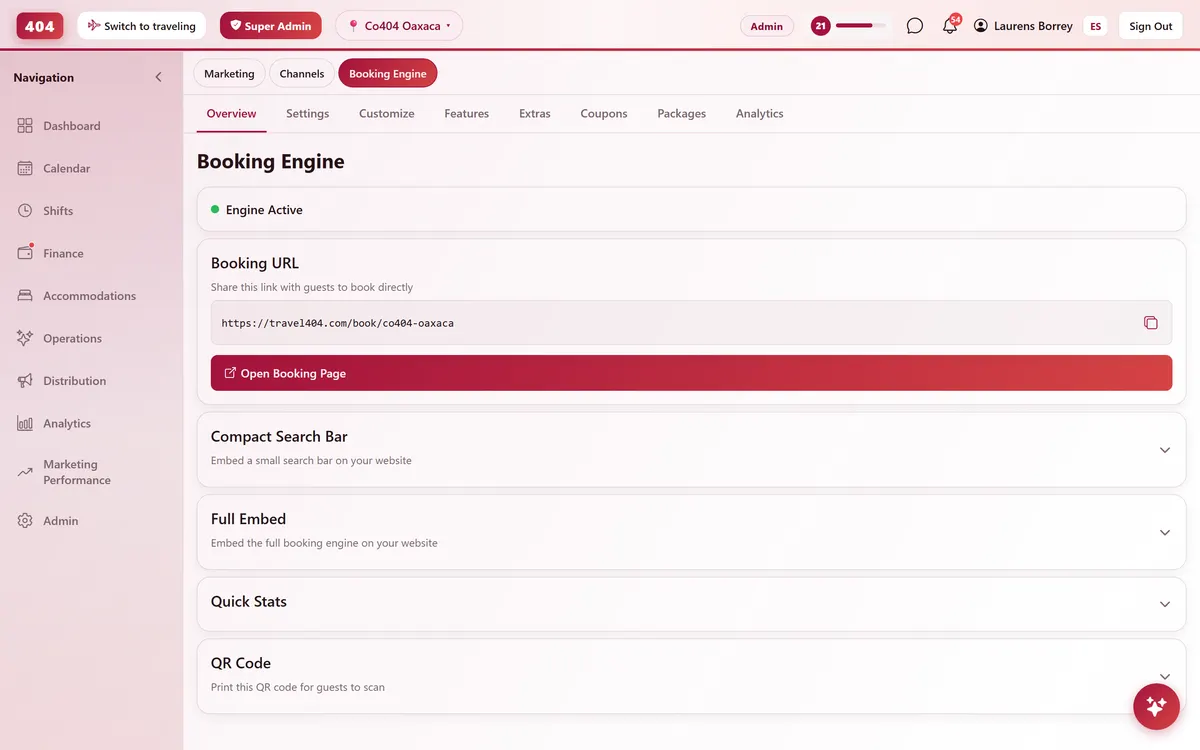
Wix's Editor has a built-in element for exactly this: Embed a Widget, which drops your code into its own sandboxed box on the page. It's available on the free Wix Editor plan — you don't need Premium to add it, only if you want a custom domain or to remove Wix ads elsewhere on the site.
Before you start
- Your property set up in Travel404 with a slug (Property → Booking Engine shows it).
- Edit access to the site in the Wix Editor (Wix Studio uses the same feature, named "Embed").
Steps
In Travel404
Copy the widget embed code
In the Travel404 app, go to Property → Booking Engine and open Compact Search Bar Widget. Under Embed Code, tap the copy icon. The code is two lines — a <div> and a <script> tag — and your property's slug is already filled in, so you won't need to edit anything before pasting it.
In Wix
Open the page in the Wix Editor
From your Wix dashboard, click Edit Site to open the Editor.
Add the embed element
Click + Add Elements on the left toolbar, go to Embed Code → Custom Embeds, and choose Embed a Widget.
Paste the code
Click Enter Code on the placeholder box that appears, paste the two lines from Travel404, then click Update.
Resize the box
Drag the element's bottom edge to make it about 550–600px tall. Wix's embed box has a fixed height and does not grow to fit content, so give it room for the calendar to open without clipping.
Publish the site
Click Publish (top right) — changes in the Editor aren't live until you do.
The snippet to paste
<div data-t404-property="your-property-slug" data-t404-mode="widget"></div>
<script async src="https://travel404.com/embed.js"></script>
How to tell it worked
Open the live page in a private/incognito window — not a tab you had open before pasting the code, which may show a cached version — and confirm the search bar loads with your property, the date pickers open, and Search takes the guest to a booking page. If nothing shows, re-check the steps above before assuming it's broken.
If something looks wrong
The widget shows a scrollbar or the calendar gets cut off
Wix's Embed a Widget box has a manually-set height and doesn't resize to fit content — select the element and drag it taller (600px is generous), then Publish again.
Nothing shows at all
Check where you pasted the code. If it went into Settings → Custom Code instead of an on-page Embed element, that's the problem: Custom Code injects site-wide scripts and won't render a visible widget. Delete it from there and add it as an Embed a Widget element instead.
It shows on desktop but not mobile
Click the element in the Editor and check its visibility icon — Wix lets you hide elements per breakpoint, and it's easy to accidentally toggle "Hide on Mobile."
The widget shows in English but my guests are Spanish speakers
Add data-t404-lang="es" to the <div> (e.g. <div data-t404-property="your-property-slug" data-t404-mode="widget" data-t404-lang="es">). That attribute only applies to mode="book"; the widget snippet above always shows English.
Common questions
Do I need Wix's Velo (dev mode) for this?
No — the standard Embed a Widget element in the regular Editor is enough. Velo is for custom app logic, not needed here.
Does this work on the free Wix plan?
Yes, adding the widget doesn't require Premium. Premium only matters if you want a custom domain or to remove Wix's own ads elsewhere on the site.
Can I put the widget on more than one page?
Yes. Paste the same snippet anywhere it makes sense — homepage, a dedicated "Book now" page, even your footer. embed.js supports any number of copies on the same page or across the site.
See it running in your hostel
Set up in 30 minutes. No credit card required.